A CREATIVE WORKFLOW FOR BEGINNERS
From your first photo to a video ready to share.
A polished result usually takes several steps: preparation, experimentation, review, and editing. You make the creative decisions along the way.
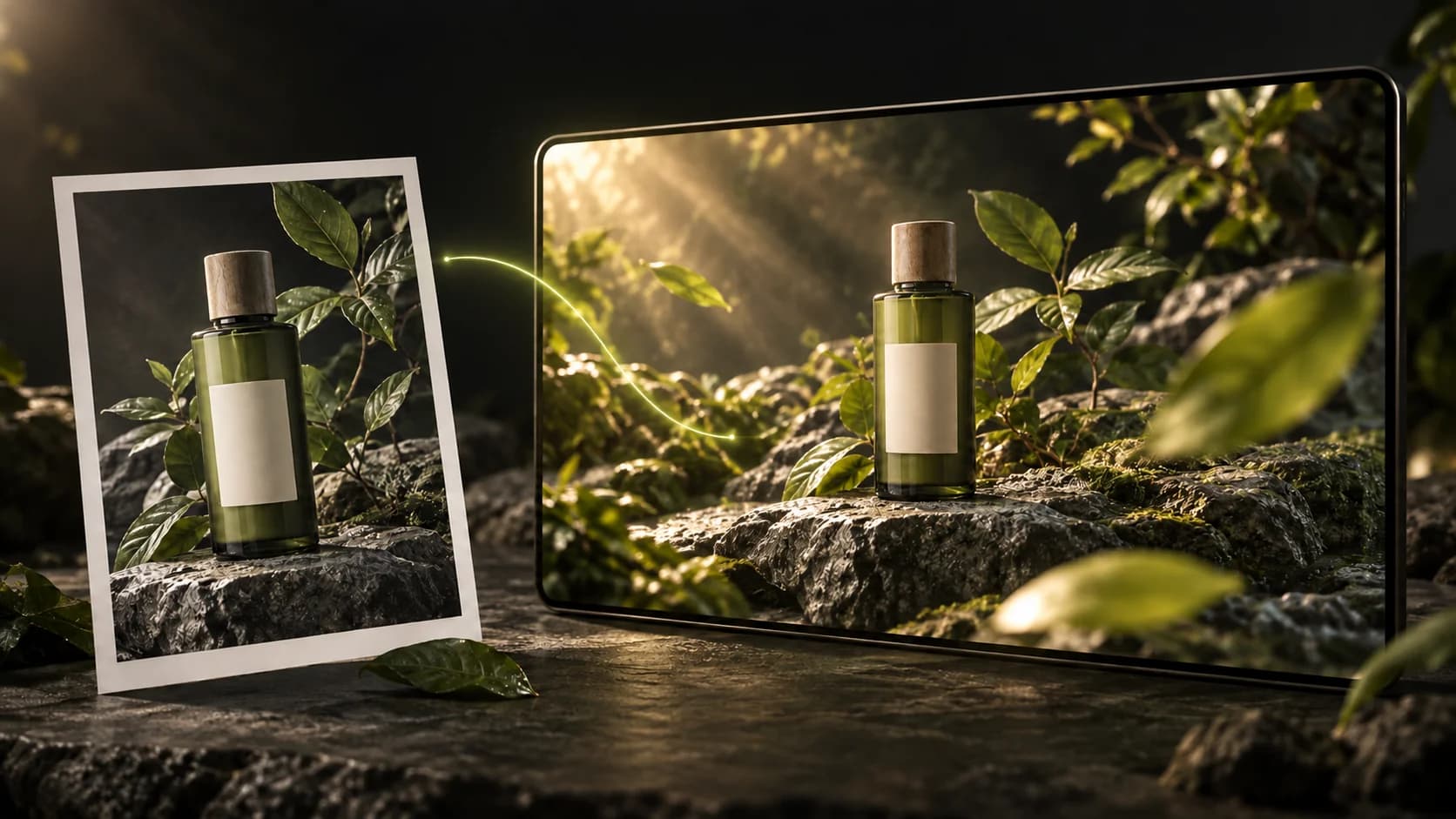
Use the photo as a reference and explain the movement you want to add.
A finished creator video may combine AI-generated clips, original footage, and editing. You cannot tell the whole process from the final video, so do not assume it was made in a single generation.
STEP 01
Prepare your photo and goal
Start with a clear product photo you have permission to use. Decide who the video is for, one real benefit to highlight, and where you will share it. If you create a photo with ChatGPT or another image tool, check the product shape, packaging, and logo first.
Learn about product photosSTEP 02
Write a clear prompt
Use AI Help in SCENRA to describe the product, action, setting, lighting and camera. Check the selected visual references and suggested prompt before Use. Prompt assistance and media generation are separate steps.
Practice writing a promptExample request for help writing a prompt
Replace the [bracketed text] with your product details, then use the request with your chosen assistant.
Help me write a video prompt based on a photo of [my product]. Goal: introduce [one factual benefit] to [potential customers]. Use one simple scene: [action]. Preserve the product shape and packaging. Avoid extra text inside the scene. Describe the setting, lighting, and camera movement. Do not add claims I have not provided.
STEP 03
Set a credit budget for your first attempt
Upload references and choose an available model, ratio, resolution and duration. Compare costs before generating; models have different capabilities and limits. Start with one small trial.
Learn how to turn a photo into a videoSTEP 04
Watch and listen from start to finish
Check the text, logo, product shape, motion, audio, and promotional claims. Listen carefully to brand names. AI may read spelling literally, misinterpret instructions, or produce unexpected details. An unsatisfactory result does not always mean your prompt was wrong.
Troubleshoot an unexpected resultTypos in your video?
Avoid asking for long text inside a generated scene. If the main clip works, add accurate text and your original logo as separate layers in an editor. If incorrect text is embedded in the product or across a face, consider another shot or regenerate that part.
Brand name pronounced incorrectly?
Text and logoSCENRASpelling to try in the speech scriptSkenraTry “Skenra” only in the script that will be spoken. Keep “SCENRA” in brand text, logos, and captions. This is a pronunciation experiment, not a guarantee for every language or model. Listen to a short sample and check the cost before making a longer version.
STEP 05
Change one thing, then compare
Note the biggest problem first. If there is too much movement, simplify the action. If a name is mispronounced, try phonetic spelling in the speech script. Change one thing per attempt so you can compare its effect. Keep your previous version. Generating again may use more credits; stop when you reach your planned limit.
Understand the cost of retriesSTEP 06
Polish the result in an editor
Open Editing Video. Use results from Assets or create them through Generate → Video, Image, Music or Voice. Arrange the timeline, text layers, transitions, music and word-by-word or karaoke auto captions. Review the export.
You do not need to regenerate the entire video for every problem. Identify whether the issue is in the clip, narration, or text, and fix the part that needs attention.
From Assets to video ready to exportSTEP 07
Write a caption, review, and share
Ask for help writing a caption based on your actual product and finished video. Check names, prices, benefits, calls to action, and links before publishing. Avoid invented claims or testimonials. Once reviewed, you can publish to Community and share through the available app flow.
Learn about captions and CommunityExample caption request
Write a short caption for a video about [summary of the video]. Product: [product name]. Factual benefit: [benefit]. Audience: [who]. Invite viewers to [action] through [official link]. Do not invent claims, prices, discounts, or testimonials. If the visuals were made with AI, include an appropriate disclosure.
Check before sharing
Use this checklist for each video. Your ticks record your own review, not an automated AI assessment. The checklist is temporary and is not saved when you leave this page.
0 of 5 checks marked.