IDEAS LABORATORY
No expertise needed. Start with a clear idea.
Fill in some simple sections. Watch your ideas become prompts that can be copied, refined, and then used in appropriate tools.
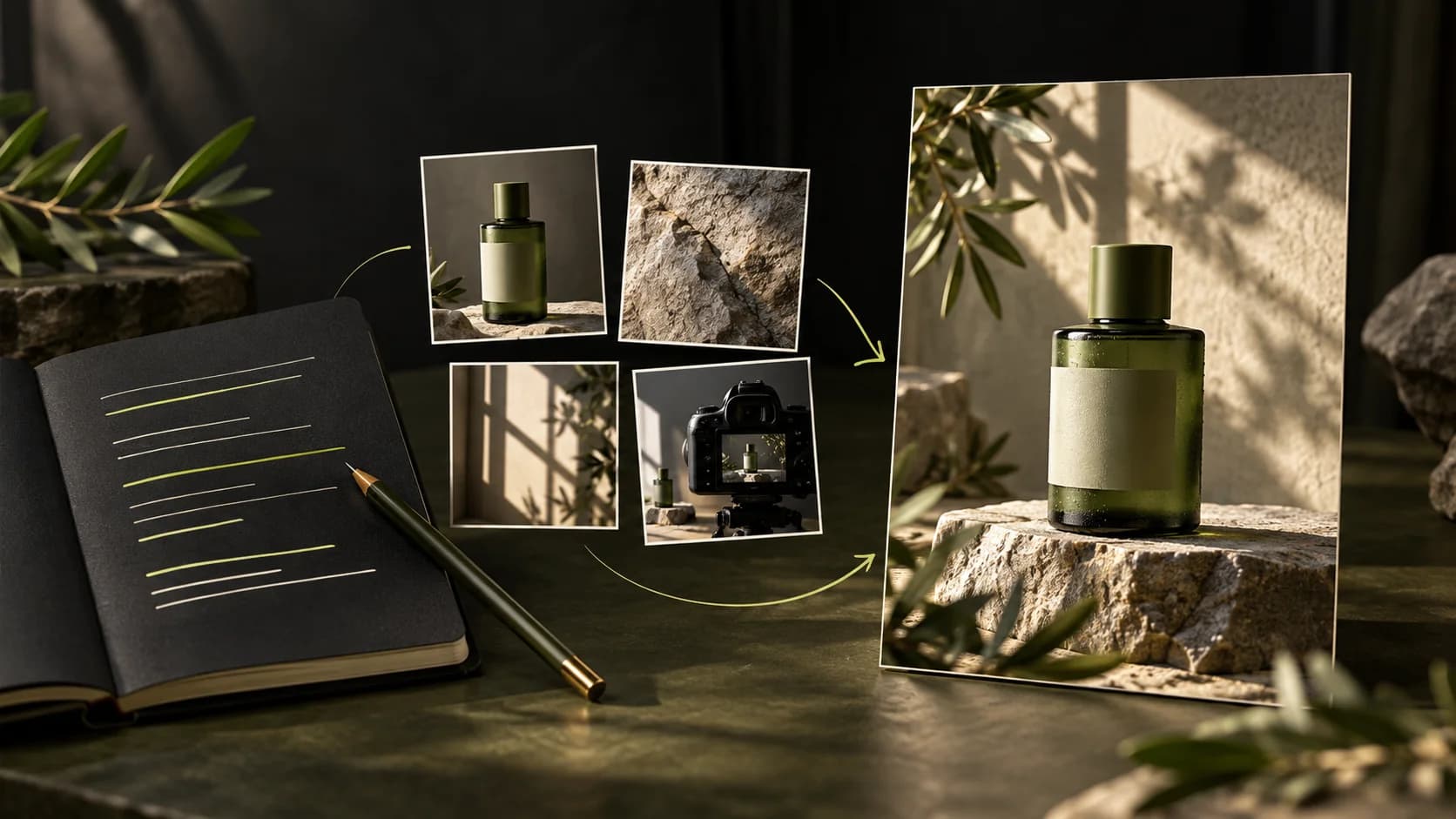
Combine subject, action, setting, light, and camera into clear instructions.
The draft has not been saved in the browser. Copy or download before leaving the page.
A prompt is a written instruction about the outcome you want. Template practice is still free. AI help is optional and shows its SC cost before running. No media is generated here.
START FROM AN EXAMPLE
The video shows movement over time. Example: hand opening product packaging.
Shape, resolution, duration: what is the difference?
Shape (ratio) is the ratio of the width and height of the frame. 9:16 looks tall, while 16:9 looks wide.
- Resolution = number of pixels
- Pixels are small dots that make up an image. Example of horizontal video: 1280 × 720 pixels (720p) and 1920 × 1080 pixels (1080p) are both 16:9. The second one has more pixels, not a longer duration.
- Duration = length of video or sound
- Example: a 5 second video finishes faster than a 10 second video. Still images do not have a playback duration. Duration options follow the available models.
- AI model = the engine that creates your result
- Each model can have different shape, resolution, duration, sound and cost options. Start from the options available on the tool, then read the cost calculations.
- Quote = the price shown before generation
- Check the SC (SCENRA Credits) amount before pressing Generate. Changing the model or settings may change the price. Academy exercises do not use credits.
These examples explain the terms. The available settings and actual prices depend on the SCENRA tool when you open it.
The subject is the main thing that is visible. Mention the products, colors and details that must remain the same.
For videos, choose one simple movement so it's easy to follow.
The setting is the place around the product. Examples: wooden table, home kitchen, or plain background.
Add visual details
These details are optional. If you leave them blank, the exercise uses the simple defaults shown in the draft.
Lighting sets the light and atmosphere. Soft window light means shadows aren't too harsh.
A close-up lets the product fill most of the frame. Eye-level means the camera is at product height. A top-down view looks down at the product from above. Camera movement applies only to video.
Boundaries help explain what needs to be maintained, for example logos and packaging colors. The AI results still need to be checked.